
Command: game create

Description

tip

We recommend creating your game using the shipthis game wizard. The shipthis game create command is the first step run by the wizard

Creates a new game in your ShipThis account.

ShipThis will read the name of your game from your project.godot file. You will be prompted to confirm this name, or you can specify one with the --name flag.

If there is already a ShipThis game config file (shipthis.json) in the current directory then you will need to use the --force flag to create a new game and overwrite this file with the config for the new game.

ShipThis will detect the version of Godot you are using from your project.godot file. To set a different version, pass the --gameEngineVersion flag, or change it later with the shipthis game details command.

The CLI checks the values you pass. The rules are the same as the ones the shipthis game details command applies.

Example
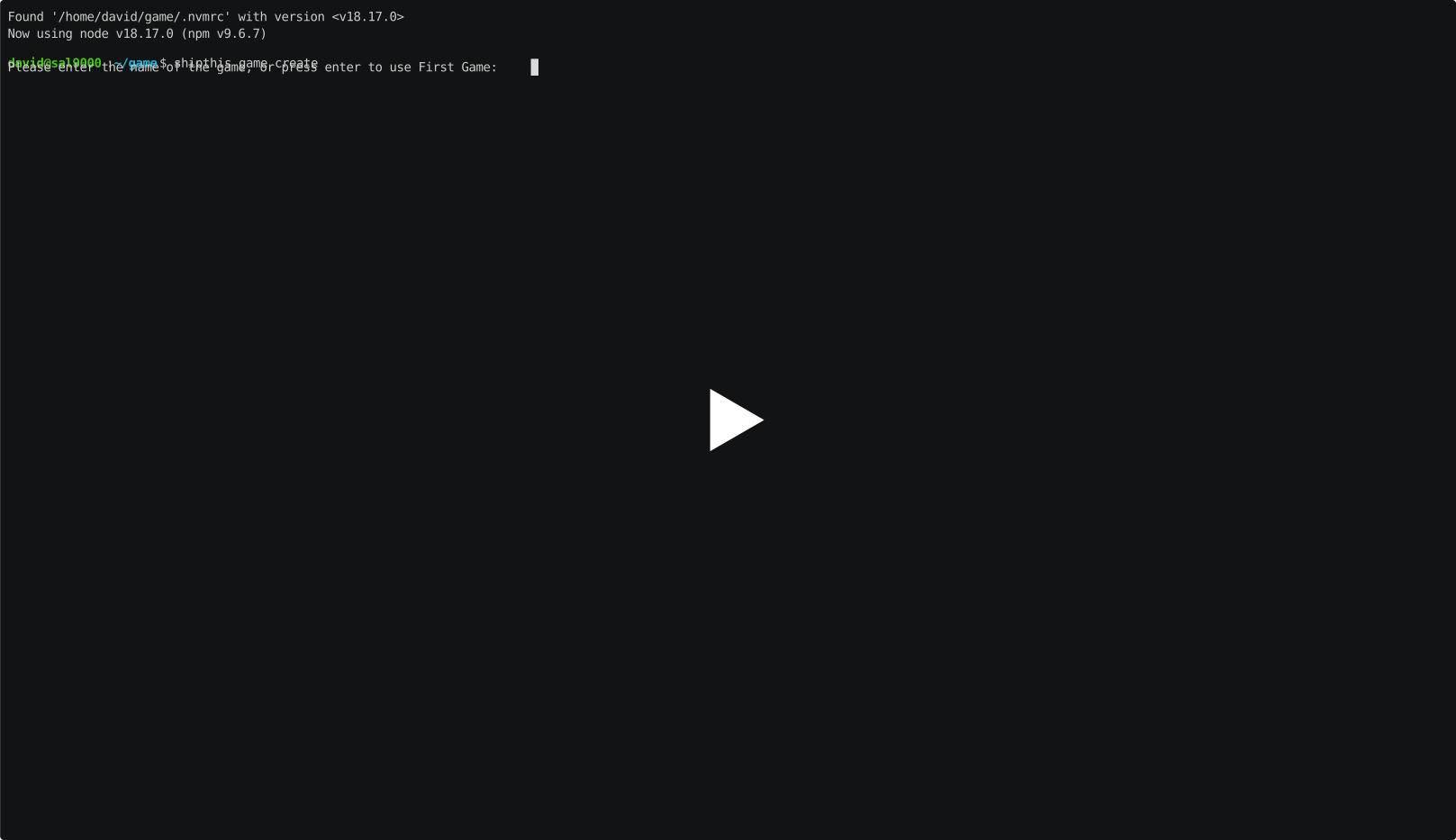
asciicast

Help Output

USAGE
$ shipthis game create [-f] [-q] [-a <value>] [-b <value>] [-e godot] [-v <value>] [--gcpProjectId <value>] [-c
<value>] [-i <value>] [-l <value>] [-n <value>] [-s <value>] [-d true|false]
FLAGS
-a, --androidPackageName=<value> Set the Android package name
-b, --buildNumber=<value> Set the build number
-c, --gcpServiceAccountId=<value> Set the GCP service account ID
-d, --useDemoCredentials=<option> Use demo credentials for this project
<options: true|false>
-e, --gameEngine=<option> Set the game engine
<options: godot>
-f, --force
-i, --iosBundleId=<value> Set the iOS bundle ID
-l, --liquidGlassIconPath=<value> Set the Liquid Glass icon path
-n, --name=<value> The name of the game
-q, --quiet Avoid output except for interactions and errors
-s, --semanticVersion=<value> Set the semantic version
-v, --gameEngineVersion=<value> Set the game engine version
--gcpProjectId=<value> Set the GCP project ID
DESCRIPTION
Create a new game in ShipThis.
EXAMPLES
$ shipthis game create