Topic: game ios app
Commands in the game ios app topic are prefixed shipthis game ios app. They relate to the App Store App and BundleId for a specific game (generally in the current directory).
An App Store App is the public-facing application available in the App Store. It includes metadata like descriptions, screenshots, and submission details, representing the final product users download.
A Bundle ID is a unique identifier for your app within Apple’s ecosystem. It connects your app to services, certificates, and provisioning profiles, ensuring it can be built, run, and managed correctly.
You can view the registered Bundle IDs (Identifiers) and their associated capabilities in the Apple Developer Portal.
You will need to be authenticated against ShipThis and Apple before you can use these commands. To do that please run the following commands first:
Commands
game ios app addTester
Description
Adds a test user to the game in App Store Connect.
Help Output
game ios app create
Description
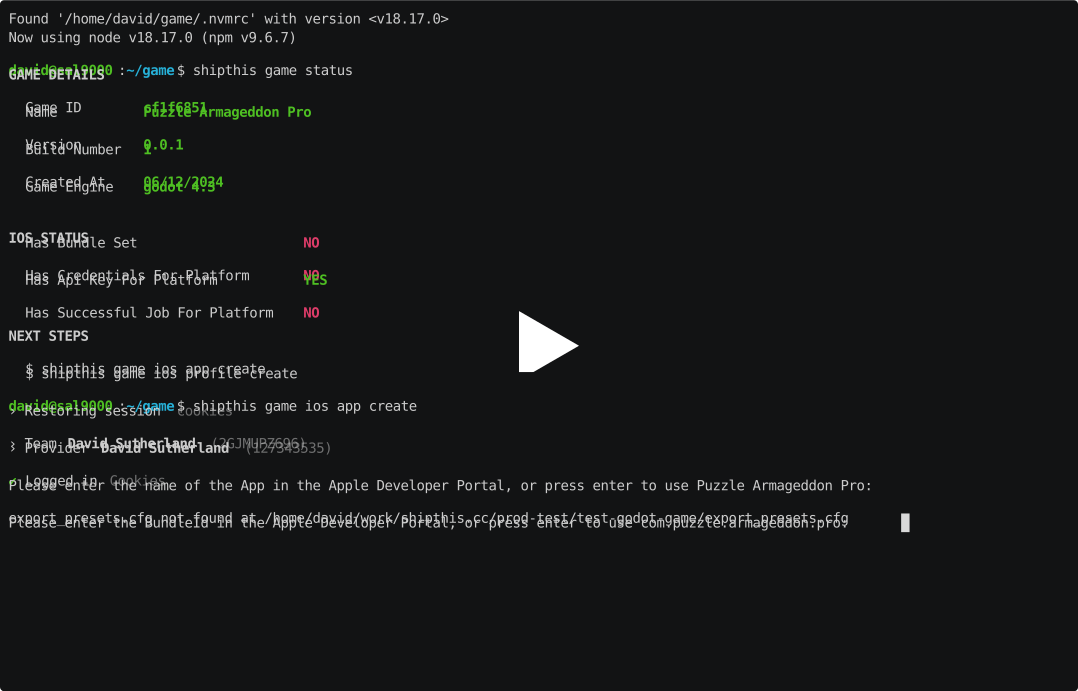
Creates an App and BundleId in the Apple Developer Portal. This command is run
as part of the shipthis game wizard command.
When run, this command will register a new App Store App and BundleId using the App
Store Connect API. It will ask you to confirm the name of the App and the BundleId
string which is typically in the form of com.mycompany.mygame. Both of these need
to be unique within the Apple ecosystem. ShipThis will suggest values for these.
Example
Help Output
game ios app status
Description
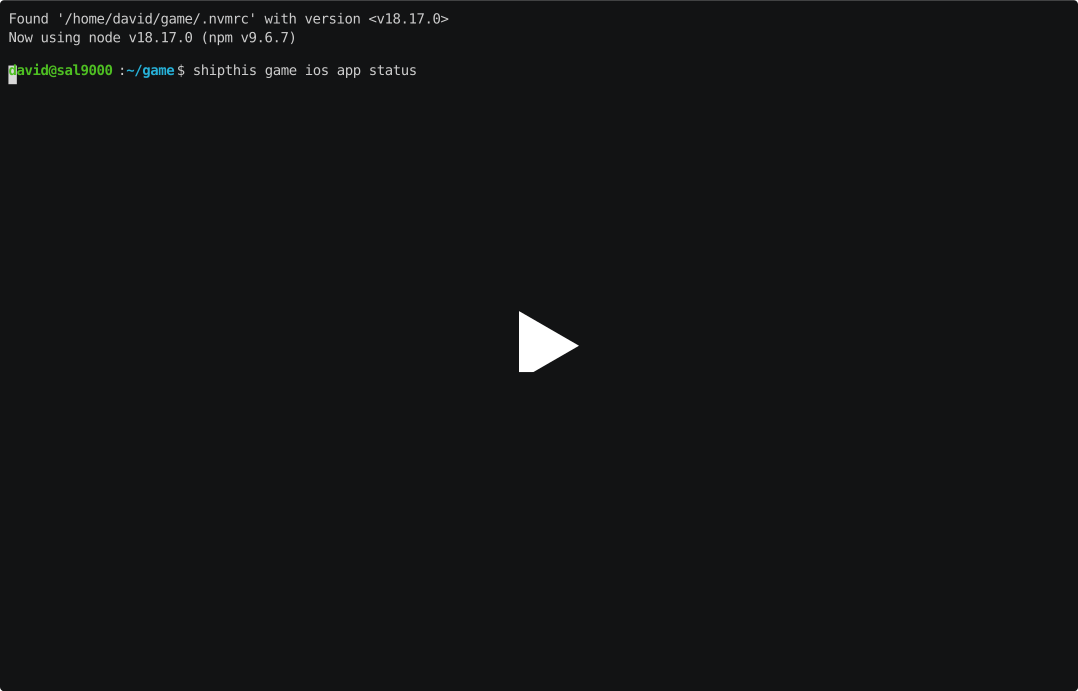
Shows the Game iOS App status. The output will tell you if you need to run the create command or sync command.
- If the App does not exist in the Apple Developer Portal then you should run the
shipthis game ios app createcommand - If you have updated your export_presets.cfg file with new capabilities then
you should run the
shipthis game ios app synccommand.
Example
Help Output
game ios app sync
Description
Synchronizes the Apple App Bundle ID with the capabilities defined in your Godot iOS export preset.
This command reads your export_presets.cfg (iOS preset) and enables or disables the corresponding capabilities on the Bundle ID in the Apple Developer Portal.
Godot options that are synced
| Godot option | Synced as | Notes |
|---|---|---|
| capabilities/access_wifi | Access WiFi | |
| entitlements/increased_memory_limit | Increased Memory Limit | |
| entitlements/game_center | Game Center | |
| entitlements/push_notifications | Push Notifications | Production or Development; or legacy capabilities/push_notifications (true). Sets aps-environment / APNS. |
| entitlements/additional | Entitlements (parsed) | Known entitlement keys (e.g. com.apple.developer.applesignin for Sign in with Apple) are synced. Unknown keys remain in your app’s entitlements only. |
Not synced: Other export options (e.g. capabilities/additional, capabilities/performance_gaming_tier) only affect the exported app; they are not synced to the Bundle ID.
You do not need to have an export_presets.cfg file in your game directory. ShipThis will use default values for this file if it does not exist.